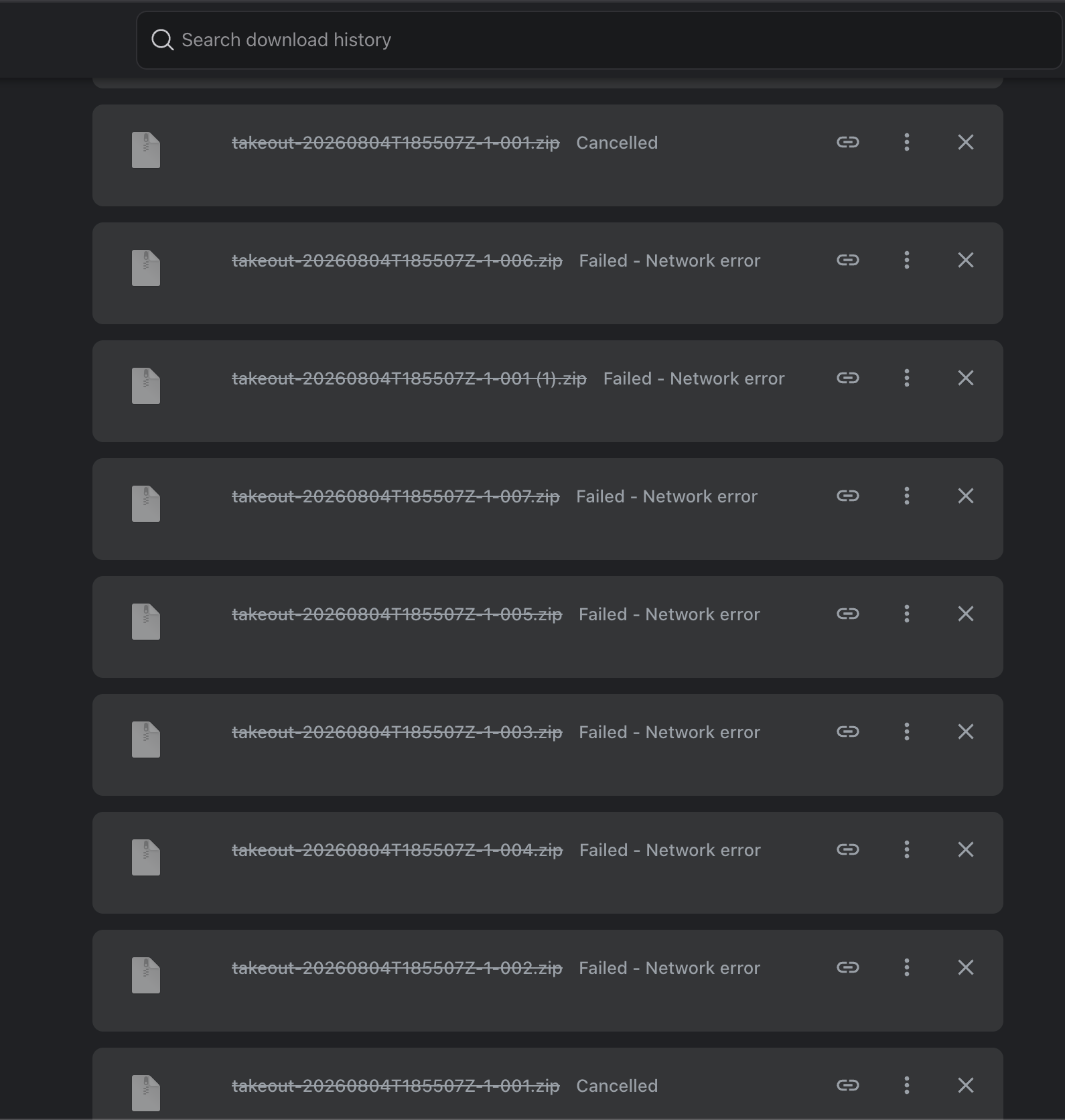
A Reliable Way to Download Large Google Takeout Files
Large Google Takeout downloads can fail when handled entirely by the browser. Exporting the archive to Google Drive and making it available offline through the desktop app provides a more convenient workflow


Downloading a large Google Takeout archive through the browser can be frustrating. If the internet connection is interrupted, the download may fail and force you to start again.
I found a more convenient approach: export the archive to Google Drive and let the Google Drive desktop app make it available offline.
1. Create the Google Takeout export
Open Google Takeout and select the data you want to export.
- Click Next step.
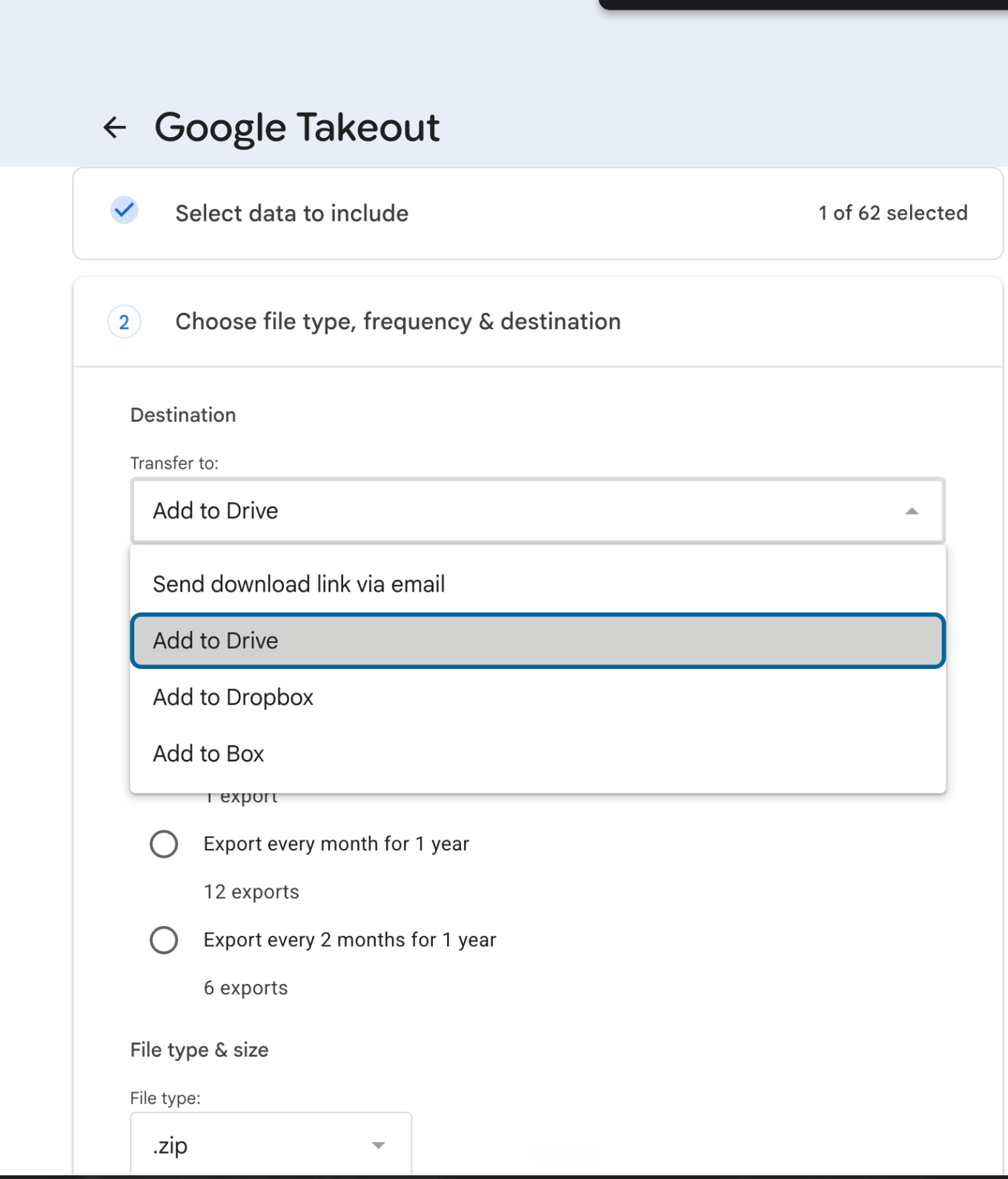
- Under Destination, select Add to Drive instead of Send download link via email.
For the remaining options, use the default values.
Click Create export. Google will prepare the archive and add it to a Takeout folder in your Google Drive. Depending on the amount of data, this may take anywhere from a few minutes to several days.
The exported files count towards your Google Account storage, so make sure your account has enough free space.
2. Install Google Drive for desktop
Download and install Google Drive for desktop on your Mac.
Open the app and sign in with the same Google Account used to create the Takeout export. After signing in, Google Drive appears as a location in Finder.
3. Make the Takeout folder available offline
Once Google finishes creating the export:
- Open Finder.
- Select Google Drive from the sidebar.
- Open My Drive and locate the Takeout folder.
- Right-click the folder, or the individual archive files.
- Select Offline access → Available offline.
Google Drive will download the files in the background. You can monitor the progress from the Google Drive icon in the macOS menu bar. The app also lets you pause and resume syncing.
Wait until the files show as available offline before disconnecting the internet or moving them elsewhere. Large Takeout archives require the same amount of free local disk space, so check your Mac's available storage first.
What about Windows?
The same approach works on Windows. Install Google Drive for desktop, open Google Drive in File Explorer, locate the Takeout folder, and select Offline access → Available offline from the right-click menu.
Why I prefer this approach you ask?